Powertools for AWS Lambda (1) - Logging and Validation
Table of Contents
Powertools for AWS Lambda is a library designed to implement best practices and boost productivity when building AWS Lambda functions. In this post, we will explore its core features, focusing on logging and validation.
The complete source code for this example is available in this GitHub repository.
I recommend reading my previous post, Deploying a Lambda Function with Terraform, to familiarize yourself with the basics of AWS Lambda and Terraform.
#
Installing Powertools for AWS Lambda
Powertools for AWS Lambda is modular and offers various extras. To use the parsing utility, we need to install the package with the parser extra.
uv add "aws-lambda-powertools[parser]"
#
Logging
Powertools for AWS Lambda provides a structured logging utility that outputs logs in JSON format to CloudWatch. By using the Logger class, you can easily log messages and include additional context as key-value pairs using the extra parameter.1
from aws_lambda_powertools import Logger

logger = Logger()

def lambda_handler(event, context):
    logger.info("This is a test message", extra={"key": "value"})
    return {
        "statusCode": 200,
        "body": "Hello, World!"
    }
In lambda.tf, we can configure the logger using two environment variables:2
POWERTOOLS_SERVICE_NAME: Sets the service name, which is added to all log messages. Alternatively, this can be set directly in Python code vialogger = Logger(service="service-name").POWERTOOLS_LOG_LEVEL: Controls the log level (default isINFO).
resource "aws_lambda_function" "lambda" {
  ...

  environment {
    variables = {
      POWERTOOLS_SERVICE_NAME = "service-name"
      POWERTOOLS_LOG_LEVEL    = "INFO"
    }
  }

  ...
}
#
Validation
Powertools for AWS Lambda provides a validation utility to verify the input of a Lambda function. Built on Pydantic,3 it structures input data as Pydantic models, allowing you to access data via attributes (<MODEL_NAME>.<ATTRIBUTE_NAME>). Let’s look at an example; the full code is available in lambda/app.py.
import json

from aws_lambda_powertools import Logger
from aws_lambda_powertools.utilities.parser import ValidationError, parse
from aws_lambda_powertools.utilities.typing import LambdaContext
from pydantic import BaseModel, Field

logger = Logger()

# A
class OrderDetails(BaseModel):
    order_id: str
    item: str
    amount: int = Field(gt=0)
    price: float = Field(gt=0)


def lambda_handler(event: dict, context: LambdaContext) -> dict:
    logger.info("Received event")

    try:
        # B
        event: OrderDetails = parse(model=OrderDetails, event=event)

        # C
        total_cost = event.amount * event.price

        logger.info(
            f"Processing order {event.order_id}",
            extra={"item": event.item, "total_cost": total_cost},
        )

        return {
            "statusCode": 200,
            "body": json.dumps({
                "message": "Order processed successfully",
                "order_id": event.order_id,
                "total_cost": total_cost,
                # ...
            }),
        }
    # D
    except ValidationError as e:
        logger.exception("Validation error", extra={"event": event})
        return {"statusCode": 400, "body": json.dumps({"message": str(e)})}
    except Exception as e:
        # ...
The code calculates the total cost from the input event and logs the order details.
##
A. Defining the Pydantic Model
We define a Pydantic model to establish the schema and validation rules for the input event.
##
B. Parsing the Input Event
The parse function validates the input event against the Pydantic model. It ensures all required fields are present and correctly typed. If validation fails, it raises a ValidationError.
##
C. Accessing the Data
Once parsed into a Pydantic model, we can access fields as attributes (e.g., event.amount * event.price) rather than using dictionary lookups.
##
D. Handling the Validation Error
We catch the ValidationError to handle invalid inputs gracefully. In this example, we log the error along with the event data for debugging purposes.
#
Deploying and Testing the Lambda Function
To deploy the Lambda function, run the following commands from the project’s root directory:
terraform --chdir=terraform init
terraform --chdir=terraform apply
In the AWS Lambda console, navigate to the Test tab and test the function with the following events. You should see logs confirming the successful order processing.
{
  "order_id": "101",
  "item": "book",
  "amount": 1,
  "price": 8.99
}

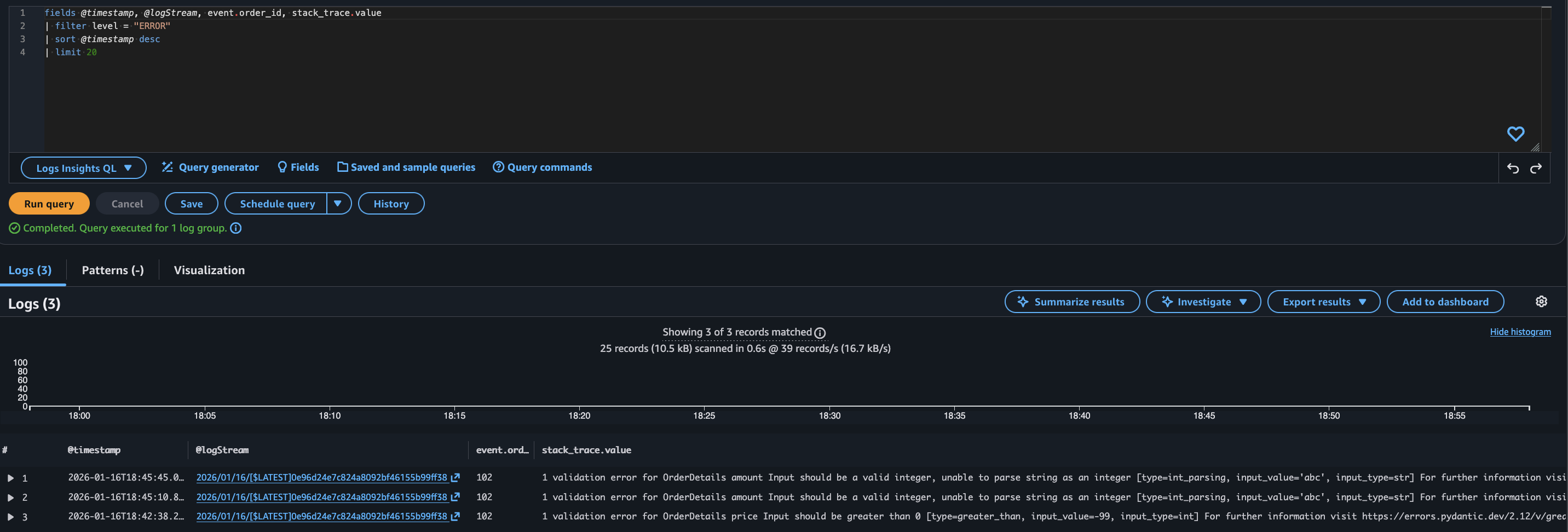
For the invalid events below, you will see validation errors in the logs. One error is caused by a negative price, and the other by an invalid data type for the amount.
{
  "order_id": "102",
  "item": "chair",
  "amount": 1,
  "price": -99
}

{
  "order_id": "102",
  "item": "chair",
  "amount": "abc",
  "price": 99
}

In the CloudWatch console, navigate to Logs Insights and select the log group aws/lambda/lambda-powertools-basics. Since Powertools generates structured JSON logs, you can efficiently query specific fields such as event.order_id and stack_trace.value. Use the following query to filter for error logs:
fields @timestamp, @logStream, event.order_id, stack_trace.value
| filter level = "ERROR"
| sort @timestamp desc
| limit 5
#
Cleaning Up
To clean up the resources, run the following command from the project’s root directory.
terraform --chdir=terraform destroy